
How to Use Hero11 Sports on Your Phone
Use this Hero11 Sports guide to locate the proper fixture in Cricket or in Football, open that event screen and find the record that is yours. Those steps follow the mobile interface as documented, with help covering loading, missing events and questions about results.
Hero11 buttons open an external access page. Already installed? Open the app on your phone.
On this page
Before you start: choose Sports or Fantasy
Choose Sports when the task ahead is finding an event and reading its markets or its records. Begin with the Hero11 Sports overview if comparing the sports and features on offer matters to you before the steps themselves are followed.
If you searched for “how to play Hero11 Sports” but want to select players and a captain, go to the Fantasy team-building walkthrough. Naming a product inside a video title may reach across more than one section of the app.
Know what you want to find
- To find a fixture, search with the sport, the competition and the match.
- For a team of players or a prediction card, select Fantasy within the main navigation of the app.
- For a Sports selection that was already submitted, open the Sports record, for instance My Bets,.
- When you want a full video stream, inspect the media choices that event actually offers, because a score never confirms that streaming exists.
1. Open Sports and narrow the event list
Open the app and choose Sports
Use your existing Hero11 app if it is already installed. If access fails before you reach the categories, use login and OTP help.
Choose the sport
Pick Cricket or Football. Allow the list in that section to finish loading prior to searching.
Set the time or status filter
Open In-Play, Today or Early in the places they are shown. A fixture concealed by the filter in use can still be present on another list.
Find the league or match
Try the search field or browse through competitions. Line up the teams, the day and the competition, rather than choosing only because a team name is familiar.
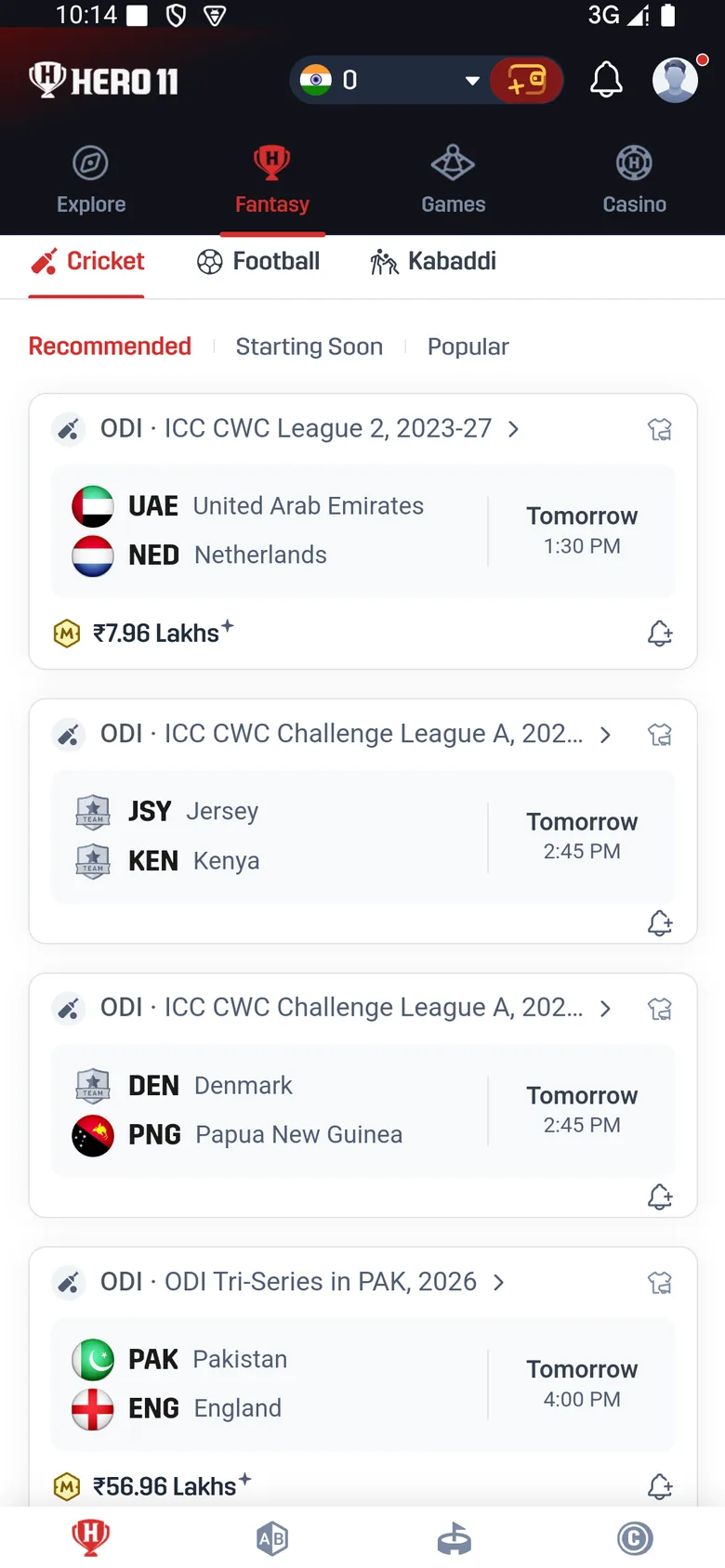 Tap to enlarge
 For a fixture in the IPL, confirm both the season and the matchup from competition information that is current, then look at the listing the app itself shows. The IPL preparation directory keeps the relevant guides together.
2. Read the Cricket event and selected view
Within the recorded interface for Cricket, Fixed and Fancy are shown as different views. Read the label that sits on the selection you are inspecting. Figures that resemble each other can refer to separate innings, totals or periods.
| Label / control | Check before continuing |
|---|---|
| Fixed / Fancy | Which view is switched on, and which rule wording covers the market you are in |
| Match Winner | Precisely which match, and how ties, interruptions or abandonment are handled |
| Innings Runs / O/U | The innings, stated line and period covered |
| Score / In-Play | Which event is displayed, and whether the status of that event has shifted |
Points for a player wicket and for batting sit with Fantasy scoring. They never settle any market under Sports.
3. Read the Football period and market label
| Label | How to interpret the label |
|---|---|
| Win / 1-X-2 | Most often the home side, a draw or the away side, so confirm whichever period the market specifies |
| HDP | One handicap line, and both the figure and the side chosen matter |
| O/U | Over or Under a total that is specified, so check what exactly is being counted |
| HT | A qualifier for the first half, rather than for the match as a whole |
| Correct Score / Corner | An outcome of another kind, so open the conditions that are set out in detail |
Vocabulary used on the screen is what that table explains. For the precise period and the conditions of settlement, read the market rules in force now, since a label on its own is not sufficient.
4. Review the details and find the entry record
Check the complete event
Verify sport, competition, teams, day, status and whichever period is shown.
Read the current conditions
Look again at the selection, the line, any sum on display and the rules that apply before choosing whether to go on.
Locate the matching record
After an entry has been sent, open a Sports record such as My Bets. Tie that record to the real fixture and the real selection, since an on-screen option that was merely chosen is not evidence an entry got accepted.
Keep records separate
The score of a fixture, the result of an entry and a transaction on the account each describe a separate stage. When something looks wrong, inspect the stage that actually fits.
Opens the external Hero11 access page. Choose the section after opening the app.
5. Resolve the specific problem
| Problem | Useful next step |
|---|---|
| Sports keeps loading | Test the connection, open that section one more time and see whether the other categories still function. Keep the app access and the account access you already hold. |
| The match is missing | Check the sport, the spelling of the league and the filters for time. What is offered can differ by day, by account or by location. |
| An event is locked or changed | Read status and conditions for the event as they stand now, instead of trusting a screenshot that is older. |
| A result looks wrong | Hold onto the match, the period, the selection and the record. Set out the mismatch through Customer Center along the Settlement route. |
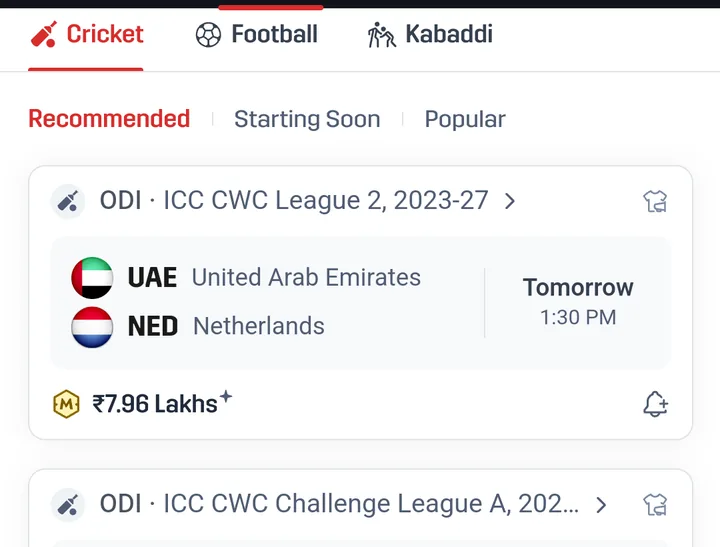 Tap to enlarge
 For an unresolved result, use match and result-status checks to identify the stage, then prepare the support details. A ticket that was submitted only requests a review, and it is not confirmation that an adjustment happened.
Return to the right section
Use Hero11 Fantasy for a squad of players or a prediction, and turn to Sports for the event and the market interface set out here. Each may relate to cricket or football while still keeping different rules and different entry records.
Ready to follow the steps?
Open Hero11 and start with the sport you want to browse. If installation is the part you need help with, the Android guide covers that separately. Participation remains subject to current eligibility and the applicable rules.
Frequently asked questions
Where is Hero11 Sports in the app?
In the main category navigation that was recorded, Sports is its own choice, placed alongside Fantasy and the other areas for games.
Why can I not find a match?
Review the sport, the competition, the wording of the search and the filter for time or status. Then see whether your account is currently being offered that fixture.
Does a label reading In-Play mean the match can be watched?
It only marks status as live. On its own, that label does not confirm a video stream is actually available.
Should the APK be downloaded once more while Sports is still loading?
Begin with the connection and with opening the section again. Installing the app over again may leave an event-list problem or an account problem untouched, so keep existing access while the cause is identified.
Sources and reference dates
Product references: Hero11 mobile recording dated 31 August 2026 and mobile interface material reviewed 8 September 2026. Guide updated 12 September 2026. Screens show examples from those sessions. Check the rules and availability shown in your current account.
External access link · 18+ and current local eligibility apply.